


ZO, AI that confirms appointments, moves leads forward, calls back missed callers, creates new contacts, merges duplicate contacts and sets up automations





ZO opens the right screen and does the steps with you. You review every save and send.
Meet ZO. The AI operator
inside Zavis.
Ask in plain words. ZO finds the right workflow, opens the screen and walks you through it, one step at a time.
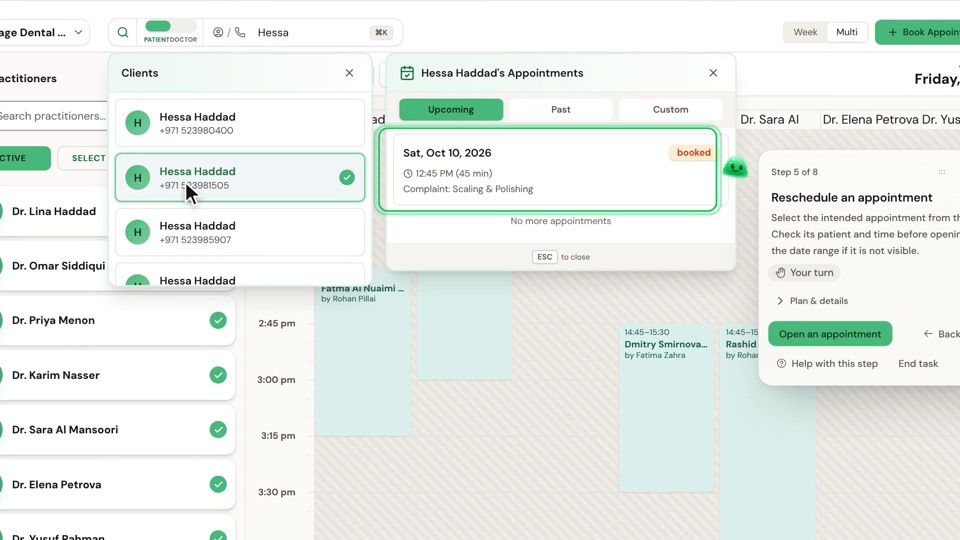
Ask, and ZO walks
you there. Step by step, inside Zavis.
No menus to learn. ZO knows where every task lives in Zavis and takes you through it on the real screens.
Reschedule Hessa
Suggested
Review missed calls
Create a task
Explore the CRM lead pipeline
01Ask in plain words.
Type it the way you would say it, like “Reschedule Hessa”, or pick a suggestion.
Finding the right workflow…
“Reschedule Hessa’s appointment and create a task to call her back”
Your task plan
1Reschedule an appointment
2Create a task
02ZO finds the workflow.
One sentence can hold up to six tasks. ZO plans them in order and starts the next one when the last is done.
- Step 9 of 9
Book an appointment
Review the patient-message controls beside Book Appointment. Then press Book Appointment in the form. The guide completes only after the native app confirms the booking.
Your turnPlan & detailsBackPauseHelp with this stepEnd task03Follow me. Your turn.
ZO opens the right screen and points. You pick, type and press save, and ZO checks the result.
Or just say it. “Show me today’s
missed calls.”
Press the mic and talk for up to 20 seconds. ZO turns what you said into the right task, hands-free at the front desk.

Listening… up to 20 seconds. Press stop when you’re done.
Review missed callsCreate a taskMissed calls4Today
Olga Ivanova+971 50 418 2290Call came in but wasn’t picked up9:10 am
Hamdan Al Shamsi+971 52 771 0431Call came in but wasn’t picked up9:07 am
Joy Mendoza+971 55 274 1868Call came in but wasn’t picked up8:52 am
Lucas Clarke+971 56 882 9354Call came in but wasn’t picked up8:05 am

Paste it once. ZO fills the form.
Paste a name, number and email together and ZO puts each one in the right field. It works across about twenty Zavis forms, from new contacts to automations and canned replies. Saving stays with you.
 Add a contact: Mariam Haddad,
050 123 4567
Smart paste with ZO
Edit contact details
CancelSave contact
Step 4 of 5
Create a contact
Enter the contact’s first name. Add an email, phone or other details if needed. Smart paste can help fill the fields.
Filling in the form…
BackPauseHelp
All of Zavis,
one ask away. Every task in Zavis,
driven by ZO.
Over 200 guided tasks across conversations, contacts, appointments, leads, calls, tasks, campaigns, reports and settings.
- Call back a missed caller
- Move a lead to another stage
- See overdue tasks
- Confirm an appointment
- Merge duplicate contacts
- See WhatsApp campaign results
- Mark a task complete
- Assign a conversation to a team
- Read a call’s transcript
- Filter leads by source, campaign, agent or label
- Mark an appointment as no-show
- Create an automation rule
- Reply with a canned response
- See one doctor’s week
- Add a label to a contact
- Listen to a call recording
- Pause a WhatsApp campaign
- Find a patient’s appointments
- Compare agents’ call performance
- See tasks due today
- Import contacts into a WhatsApp campaign
- See who is on a call now
- Resolve a conversation
- Save a contact filter as a segment
- See how many leads are in each stage
- Assign new conversations automatically
- Add a note to a contact
- See which ad a contact came from
- Reopen a completed task
- Set a conversation’s priority
 See overdue tasks
You stay in charge. ZO never presses
save or send.
You review every save and send.
ZO fills and points. The final press on a booking, a message or a form is always yours.
Pause, go back or end the task.
Every step has Back, Pause and End task, so you can stop or take over at any moment.
Help with this step.
Stuck on a screen? Ask for help on the step you are on, and ZO explains what to do next.
